RDPSoft

Remote Desktop and Terminal Server Software

We Monitor, Manage & Fix RDS, AVD, Citrix and Parallels RAS
  • Products / Services
    • Not Sure Where To Start?
    • The Complete Monitoring and Management Bundle For End User Computing
    • RDS / AVD Monitoring & Reporting
      • Remote Desktop Commander Suite
      • Sysmundo
    • RDS / AVD Management and RMM Tools
      • Remote Desktop Commander Lite (Free RDS/AVD Management Tool)
      • Remote Assistance RMM Tool + Delegation of Management for RDS/AVD Support Desk
      • Automatic Resolution of Locked Profiles and Stuck Sessions
    • RDS/AVD Synthetic Login Monitoring / Connection Time / Uptime Monitoring Tools
      • Remote Desktop Canary
    • RDS/AVD/Citrix Profile and Session Problem Remediation
      • Fix My Session
    • Digital Forensics and Incident Response Tools
      • Sysmundo
    • Consulting and Professional Services
      • RDS Performance Audits, Security Audits, and General RDS Consulting
      • Custom Report Design Services
      • Training and Other Professional Services
  • Download
    • RDC Lite: Free RDS/Citrix Session and Farm Manager
    • RDC Lite With Premium Management Features
    • RDC Suite: Installer and Release Notes
    • Remote Desktop Canary – Request a Demo/Trial
    • Sysmundo
    • Request Upgrade To New Version
  • Buy
    • The Complete RDS/AVD Monitoring and Management Bundle Purchase Options
      • Start Monthly Subscription Now
      • Start Annual Subscription Now
    • Remote Desktop Commander Suite Purchase Options
      • Start Monthly Subscription Now
      • Start Annual Subscription Now
    • Premium Management Features Purchase Options
      • Start Monthly Subscription Now
      • Start Annual Subscription Now
    • Remote Desktop Canary Purchase Options
      • Start Monthly Subscription Now
      • Start Annual Subscription Now
    • Fix My Session Purchase Options
      • Start Monthly Subscription Now
      • Start Annual Subscription Now
    • Sysmundo Purchase Options
      • Start Monthly Subscription Now
      • Start Annual Subscription Now
    • Buy Incident Based Support Packages
    • Pricing
  • Blog
  • Support
    • Contact Support / Submit Ticket
    • RDPSoft Knowledge Base
  • Contact
  • Partners

RDS Logins & Logon Failure Tracking (And More) in Remote Desktop Commander v4.5+

September 27, 2018 By admin Leave a Comment

Though later versions of our Remote Desktop Commander Suite build on these key features, it’s worth drilling into these specific capabilities in RDS logins and logon failure tracking (plus some extra stuff we’re sure will interest you) that were introduced starting with v4.5:

Consolidate All RDS Logins and Logon Failures, Regardless Whether Or Not They Occurred On Session Hosts Or Remote Desktop Gateway Servers

Our CEO, Andy Milford, has written at length about the challenges faced when attempting to correlate RDP logon failure data from session hosts at his PureRDS.org blog. Attempting to track successful RDP logins is no picnic either, as multiple log files from multiple different systems – the session host servers and remote desktop gateway servers – must be consulted and the information correlated.

In version 4.5 of the Remote Desktop Commander Suite, the Remote Desktop Reporter Service automatically collects and correlates key events from event log files on Session Host servers and Remote Desktop Gateway servers. The result is a treasure trove of valuable login and logon failure data that it retains in its SQL database, allowing us to deliver the incredible new features described below.

Geolocate RDS Logins and Logon Failures In the User IP Geolocation Dashboard – Find Out Where Your Users Are Working From, and Locate the Source Of Brute Force RDP Hack Attempts

Geolocate RDP Logon Failures
Perform deep analysis of RDP logon failures and user logins using the User IP Geolocation Dashboard.

Remote Desktop Services login and logon failure data correlation from session hosts and gateways is a valuable feature in its own right, but the rich visualizations of this data is what sets Remote Desktop Commander Version 4.5+ apart from the competition. The User IP Geolocation Dashboard combines IP geolocation data with interactive worldwide maps and tabular, filterable tables so administrators can zero in on both legitimate RDS users and hackers.

Locate The Source of RDP Brute Force Hack Attempts
Filter RDP logon failure and login data by username, time frame, computer, and sort the data by username, region, country etc.

Our dashboard is completely extensible via PowerShell scripts, which are designed to receive selected server names, usernames, and IP addresses as input parameters. This is especially useful for the remediation of inbound hack attempts.

Remediate Brute Force RDP Attacks
Extend the capabilities of the dashboard with PowerShell

Instantly build reports from the filtered RDP login and logon failure data in the dashboard, or simply export the data to comma-delimited text.

Report on RDP Logon Failures
Export RDP login data and generate reports in PDF, Word, or Excel.

Schedule Daily User Login and Logon Failure Reports

RDP Logon Failure Reports
Build RDP login reports manually, or schedule them to run daily to gain insight on where users are connecting from.

Scheduled reports make it easy to keep track of both where your users are routinely connecting from, as well as the sources of hacking and penetration attempts. Group login and logon failure data by country or by user. With routine review of these reports, you can quickly spot geographic RDP login anomalies that could be suggestive of a compromised user account.

See The Actual IP Address and Geolocation Information for User Sessions In Existing Time Tracking Reports.

By default, the Microsoft Terminal Services client (MSTSC) does not report its actual global IP address when connecting to a terminal server. When connecting through a Remote Desktop Gateway system, no IP address information is transmitted at all. Many admins have requested that we transform the incorrect or missing IP address information with the actual global IP address of the user, whether or not they are connecting through a RD Gateway.

Based on this feedback, we have retrofitted several existing reports, such as the User Sessions – Session Details By User report family, to include the correct global IP of the user based on the correlated log data now collected by our central polling service. Also, when possible, the global IP address is accompanied with the geographic region of the user’s ISP

Remote Desktop User Time Tracking Report
Many existing user activity reports now include the resolved, Global IP of the user, and ISP geolocation information when available.

Massively Reduce Database Storage Requirements With Performance Threshold Database Pruning

As you can see, we’ve mainly talked about logins and logon failures so far, and we’re talking about lots of data that we work with. So, we have to be ready to handle it all. Which brings us to a related feature.

Collecting in-depth performance data on a per-user and per-program basis with our agent service is great, but it’s easy to generate a lot of data in SQL by doing so. Version 4.5+ has a nifty new feature that we call “Performance Threshold Database Pruning.”

Now, in addition to purging out agent-based performance data based on date, you can elect to keep only the agent data associated with times of high load on session host servers. You can define what you consider to be high load both in terms of CPU usage or memory utilization, or a combination of both. Using this new feature can drastically reduce the amount of data stored in SQL over time, in many cases by over 80%.

Control RDS Performance Database Growth
Using Performance Threshold Database Tuning, tightly control the size of your SQL database growth.

. . . And What’s The Latest?

Of course, features change and mature, so be sure to find out the latest developments with our Remote Desktop Commander Suite by requesting a web demo with an RDPSoft solutions expert.

Updated: November 2020.

Filed Under: RDP Login Tracking, RDP Logon Failure Tracking, RDP Security, Remote Desktop Security, Software Releases Tagged With: geolocating RDP logins, rdp hack attempt, rdp login, rdp logon failure, RDP Security, RDS Security

Remote Desktop Commander v4 Now Available

January 29, 2018 By admin Leave a Comment

Greetings friends and current Remote Desktop Commander customers! We’ve just released Version 4.0 of Remote Desktop Commander, both the Lite and Suite editions, so we want to tell you what’s new under the hood in terms of features.

In this RDPSoft E-Newsletter:


New Remote Desktop Commander 4.0 Features

Introducing RDS Performance Audits, Custom Report Design Work, and White Glove Installation

Our Technology Alliance Partner, FSLogix, Is Simply the Best Solution for Office 365 Deployments Inside RDS, Citrix, and VDI

RDC 4.0 Download and Upgrade Links

New features include:

  • Pinpoint Historic CPU, Memory, and Other Session Load Bottlenecks on Servers Instantly With “Historical Performance and Load Across the Farm” Dashboard

  • Quickly Filter Dashboards By Date Range and RDS Collection Name or Server Group

  • Azure and Standard SQL Server Authentication Support

  • Adjust RDP Permissions on Session Hosts Directly In the Session Navigator

  • Speed Improvements and Other Bug Fixes

Pinpoint Historic CPU, Memory, and Other Session Load Bottlenecks on Servers Instantly With “Historical Performance and Load Across the Farm” Dashboard

This Feature Is Present In the Following Editions: Suite
Previous versions of Remote Desktop Commander allowed you to view recent performance metrics across your servers, as well as pull up snapshots of performance for all user sessions given a specific period of time. However, the new Historical Performance And Load Across The Farm Dashboard allows you to scroll through hour-by-hour graphs of when your RDS session host servers were under peak load, in terms of memory, CPU, or session count. The graph is interactive, so you can click on a point of interest, and be immediately transported to another dashboard that shows all of the sessions active in that time frame- so you can review the user session(s) that contributed most to the server load and determine what they were doing at the time.

Historical Performance And Load Across the Farm
Track CPU, Memory, and Session Counts On Your RDS Servers Over Time
Historical Performance And Load Across the Farm (2)
Pinpoint Times of High Resource Utilization on RDS Session Hosts.

Historical Performance And Load Across the Farm (3)

Review Which Users Caused High Resource Utilization
After Clicking On a Timeframe of High Resource Utilization, Immediately See Which Users Impacted the Session Host(s) Most.

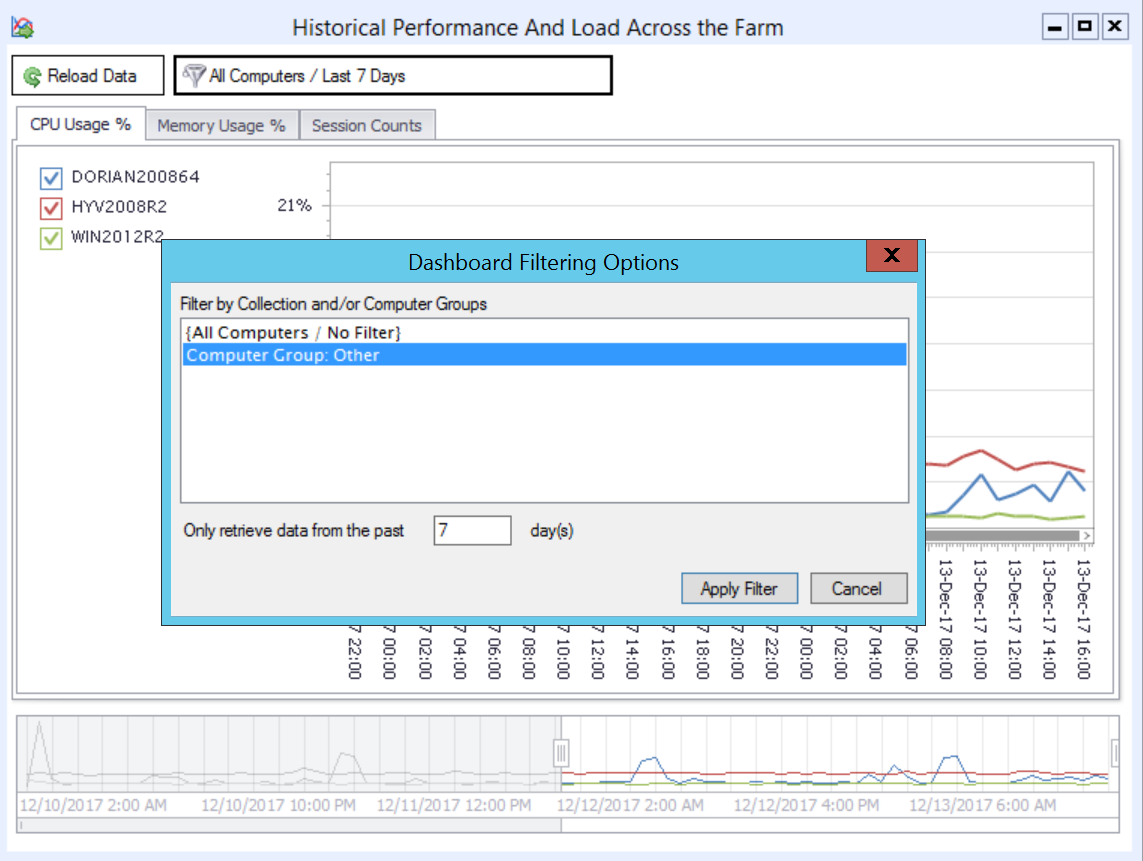
Quickly Filter Dashboards By Date Range and RDS Collection Name / Server Groups

This Feature Is Present In the Following Editions: Suite
For organizations with larger RDS deployments, attempting to review all of the session host servers in a single dashboard can get complicated. Version 4 of Remote Desktop Commander allows you to quickly filter dashboards by a 1.) RDS collection name, 2.) user-defined group of RDS servers, and 3.) in some cases, a date range lookback. By doing so, you can keep multiple dashboards up and running inside the Remote Desktop Commander Client, with one dashboard per RDS collection.

Filter Dashboards By RDS Collections
Limit the Scope of Session Hosts Shown in Dashboards By Filtering By Collection Name or Computer Grouping.


Filtered Dashboard By Computer Group
A Dashboard With Fewer Elements Filtered By RDS Collection Name / Computer Group

Azure and Standard SQL Server Authentication Support

This Feature Is Present In the Following Editions: Suite
Previous versions of Remote Desktop Commander required use of a local SQL Server deployment with Windows Integrated Authentication. Version 4 now also allows you to use a.) an on-premise SQL server with Standard (explicit username/password) Authentication and/or b.) a Microsoft Azure SQL Server deployment. This provides organizations with the flexibility to create multiple SQL databases for multiple RDS deployments on a single SQL Server, even when each deployment is isolated in a different, non-trusting Windows domain.

Now Use Standard SQL Connections and Azure SQL Connections to Store and Review RDS Data

Adjust RDP Permissions on Session Hosts Directly In the Session Navigator

This Feature Is Present In the Following Editions: Lite and Suite

In the summer of 2017, Andy Milford, CEO of RDPSoft and Microsoft MVP in the Remote Desktop Services category, released the beta version of the new free tool called RDSConfig at the PureRDS.org resource site he maintains. Just as TSAdmin was removed from Windows Server 2012, TSConfig was similarly removed, making it very difficult for RDS admins to adjust the RDP permissions on session hosts. This has prevented many organizations from being able to delegate certain RDS management roles to non-admin users, such as shadowing users for support purposes. In Version 4 of Remote Desktop Commander, this tool has been integrated into the Session Navigator area of both the Lite and Suite versions. Now admins can easily view and adjust RDP permissions on their session hosts any time they wish.

GUI to Adjust RDP Permissions
View and edit RDP permissions directly inside Remote Desktop Commander.
Adjusting RDP Permissions Granularly
Use the RDSConfig utility to view and adjust RDP permissions on your session hosts.

Speed Improvements and Other Bug Fixes

In version 4 of Remote Desktop Commander, we have optimized many SQL queries to speed the retrieval of historic performance data to the Client. Also, we have repaired a few bugs, including one that affected the ability to record screenshots from multiple monitor sessions in certain instances.

New RDS Consulting Services: Schedule an RDS Performance Audit, Request Custom Reports, or Schedule White Glove Installation

2017 was a great year for RDPSoft, and to celebrate our continuing growth, we’re now pleased to offer additional services to go along with our Remote Desktop Commander Suite solution.

  • RDS Performance Audit
  • Administrator time is at a premium these days. Often, you may know there is a performance issue with your RDS farm, but you don’t have the time to figure it out on your own. Let RDPSoft do that for you. We will install our Remote Desktop Commander Suite software in your environment, and then gather up key performance metrics, including data from RDS-related event logs and installed Hotfixes. After gathering data for a week, we will build a comprehensive report that benchmarks performance in your farm and offers suggestions on how to improve it. You don’t even need to have your own instance of Microsoft SQL available for data collection – we can provide you with a secure connection to an Azure SQL database as part of this service. For more detailed information, and to request a quote, click here.

  • Custom Report Design
  • Do you need a report that’s not available out of the box? Let the RDPSoft team build that for you. Using the free Microsoft Report Builder tool, we can design custom SQL queries and RDLC templates that connect into our Remote Desktop Commander database. Click here for more information and to request a quote.

  • White Glove Installation
  • For only $99, an RDPSoft technician will establish a remote support session with you and install the Remote Desktop Commander Suite software. This service includes a.) installing the software, b.) linking it to a SQL Server Express, SQL Server, or Azure SQL database, c.) adding session hosts / workstations for monitoring, d.) verifying that data is being collected properly, and e.) verifying that the data is displayed properly in reports and the Remote Desktop Commander Client. Click here to purchase this service and schedule a time with an RDPSoft support expert.

Rolling Out Office 365 in RDS, Citrix, or VDI? FSLogix Is Your Lifesaver.

If you attempt an Office 365 deployment inside a virtualized environment, including RDS and VDI, you will be hit with lots of snags. Our technology alliance partner, FSLogix, pioneered the solution to these issues, and they remain the best solution in the market for virtualized Office 365 roll outs. Please read this wonderful article and product comparison that details why they remain the best-of-breed solution.

Remote Desktop Commander 4 Download and Upgrade Links

If you are an existing Remote Desktop Commander SUITE subscription licensee and/or active maintenance agreement holder, click here to request upgrade instructions.

If you are an existing Remote Desktop Commander LITE user, click here to download the latest version, which you can install directly over previous Remote Desktop Commander Lite versions.

If you’d like to learn more about the Remote Desktop Commander Suite, including its feature set and how to start a subscription for only $9.99 per server per month, click here.

Filed Under: Software Releases Tagged With: Azure SQL, RDP, RDS Performance Audit, Remote Desktop Services Performance

Version 4 of Remote Desktop Commander Almost Ready!

December 14, 2017 By admin Leave a Comment

Hello friends and existing customers! We’re excited to let you know that the release of Remote Desktop Commander v4 is just about ready, and wanted to give you a sneak peak of all of the new features it contains.

We will be releasing Version 4 shortly after the start of the new year, along with a small price increase – our first price increase in over 18 months. If you’d like to test drive a release candidate of version 4, please complete the form here and mention that you want to try the release candidate of Version 4 in your comments.

New Remote Desktop Commander 4 Features

Now You Can Pinpoint Historic CPU, Memory, and Other Session Load Bottlenecks on Servers Instantly With the “Historical Performance and Load Across the Farm” Dashboard

Previous versions of Remote Desktop Commander allowed you to view recent performance metrics across your servers, as well as pull up snapshots of performance for all user sessions given a specific period of time. However, the new Historical Performance And Load Across The Farm Dashboard allows you to scroll through hour-by-hour graphs of when your RDS session host servers were under peak load, in terms of memory, CPU, or session count. The graph is interactive, so you can click on a point of interest, and you will immediately be transported to another dashboard that shows you all of the sessions active in that time frame, so you can review the user session(s) that contributed most to the server load and determine what they were doing at the time.

Historical Performance And Load Across the Farm
Track CPU, Memory, and Session Counts On Your RDS Servers Over Time
Historical Performance And Load Across the Farm (2)
Pinpoint Times of High Resource Utilization on RDS Session Hosts.

Historical Performance And Load Across the Farm (3)

Review Which Users Caused High Resource Utilization
After Clicking On a Timeframe of High Resource Utilization, Immediately See Which Users Impacted the Session Host(s) Most.

Quickly Filter Dashboards By Date Range and RDS Collection Name / Server Groups

For organizations with larger RDS deployments, attempting to review all of the session host servers in a single dashboard can get complicated. Version 4 of Remote Desktop Commander allows you to quickly filter dashboards by an 1.) RDS collection name, 2.) a user-defined group of RDS servers, and 3.) in some cases, a date range lookback. By doing so, you can keep multiple dashboards up and running inside the Remote Desktop Commander Client, with one dashboard per RDS collection.

Filter Dashboards By RDS Collections
Limit the Scope of Session Hosts Shown in Dashboards By Filtering By Collection Name or Computer Grouping.
Filtered Dashboard By Computer Group
A Dashboard With Fewer Elements Filtered By RDS Collection Name / Computer Group

Azure and Standard SQL Server Authentication Support

Previous versions of Remote Desktop Commander required use of a local SQL Server deployment with Windows Integrated Authentication. Version 4 now also allows you to use a.) an on-premise SQL server with Standard (explicit username/password) Authentication and/or b.) a Microsoft Azure SQL Server deployment. This provides organizations with the flexibility to create multiple SQL databases for multiple RDS deployments on a single SQL Server, even when each deployment is isolated in a different, non-trusting Windows domain.

Now Use Standard SQL Connections and Azure SQL Connections to Store and Review RDS Data

Other Performance Improvements

In addition to the features listed above, we’ve made many other performance improvements and bug fixes in this version. Stay tuned for our official launch announcement shortly!

Filed Under: Remote Desktop CPU, Remote Desktop Management, Remote Desktop Memory, Remote Desktop Memory Usage, Remote Desktop Performance, Remote Desktop Services, Software Releases, Terminal Server Monitoring Tagged With: RDS Collection, RDS Performance Monitoring, Remote Desktop Services

Why XenApp Monitoring Is So $#%!?@ Expensive

September 21, 2015 By Andy Milford Leave a Comment

This post is likely going to irritate some folks in our industry, and that’s OK. Frankly, that’s the point.

Let’s Pull Back the Curtain On How Server Based Computing (SBC) / End User Computing Software Is Sold

I’ve now been in the SBC industry for nearly 2 years. Prior to that, I was the CEO of Dorian Software, a Windows log management vendor that helped governments and businesses shore up their network security and compliance.

At Dorian, we sold some through the channel, but sold direct to the end user most of the time. Because of this, we we could deliver max value because we didn’t have to pad our pricing to leave tons of margin for channel partners. It was a win-win for everyone involved – we could close deals quicker, and our customers saved a ton of money and realized a quicker return on their investment.

The Citrix and Server Based Computing Markets Are Heavily Channel Driven. Which Means Businesses Of All Sizes Get Soaked By Higher Costs Down the Line.

In my two short years as RDPSoft’s CEO, I’ve been amazed by how insular the server-based computing / end-user computing market is. Big channel players effectively act as gatekeepers of the market, and unless you bring an expensive product to them from which they can extract healthy margins, they’re not going to talk to you.

When I’ve challenged them in conversations on why more customers don’t buy solutions directly from vendors, they speak with open contempt about how “businesses don’t have the skill or expertise to deploy these solutions on their own.” Given how complex, buggy, and temperamental SBC solutions have become, they may well have a point.

However, there are plenty of admins who deploy these products every day with nothing more than online E-Docs and message boards to guide them. I know, because I talk to them each and every week.

As a consequence of the above, most XenApp Monitoring solutions sold through the channel cost more than $600 per server or $50 per concurrent user. When compared to the nearly $300 difference per concurrent user between XenApp Advanced Edition and XenApp Platinum Edition (which ships with all the EdgeSight / Director monitoring goodies), I suppose $50-$100 per concurrent user becomes a relative bargain for larger enterprises. But it’s still out of reach for most SMB shops. And it’s a complete non-starter for Managed Service Providers.

Here’s What You Get To Pay For When You Buy a XenApp/XenDesktop Monitoring Solution From the Channel

Yes, let’s dissect this. It’s not pretty.

  • The portion of the sale paid to the channel partner by the vendor (typically anywhere from 20% to 50%)
  • All those steak dinners and “lunch and learns” the vendor gets to treat the channel partner to once a quarter, in the hope that the channel partner a.) actually knows how to sell their solution, and b.) doesn’t jump ship to a different vendor that’s promising higher margins.
  • All the “under the table” payments made by the vendor to those “independent” server-based computing / end-user computing “experts” you know and love, so said experts will hawk their products in blog articles, online reviews, and at trade shows. Yes, I know said experts have to eat too, but there’s an appalling lack of transparency about how prevalent this practice is in our industry. Could we have a little more voluntary disclosure, please??!!

The Net Result: SMBs Often Get Priced Out Of the XenApp Monitoring Market

Most of the channel fat cats described above (and by extension, the vendors they partner with) have no interest in dealing with Citrix and RDS deployments in organizations with fewer than 100 concurrent users. Many of them also don’t want to deal with shops that have fewer than 500 concurrent users. However, the irony in all of this is that the *vast majority* of Citrix and RDS farms feature fewer than 500 users. Because of this effective orphaning of the SMB market, admins in these smaller networks don’t have a lot of options in their budget range. They may cobble together some scripts, lean too heavily on traditional Network Monitoring Software that doesn’t have much depth when it comes to monitoring/reporting on SBC activity, or sadly, go without. This needs to change.

It’s Time To Disrupt This Industry To Benefit the SMBs and MSPs

Now that we’ve studied this market, and seen it for how it truly is, warts and all, we’re throwing down the gauntlet.

For only $9 per server per month, or $1 per workstation/virtual desktop per month, you can now acquire subscription licensing from us. Yes, you read that correctly.

Want to continually monitor 10 XenApp servers year around? No problem – that will cost you $1080 a year.

Want to do a simple 90 day assessment of remote worker productivity on your 5 RDS servers? Easy enough – just carry a subscription for 3 months, and pay only $135!

Have two RDS servers you need to check bandwidth consumption on for 30 days? We think you’ll find that $18 to be a bargain.

Now It’s Your Turn. Help Us Get the Word Out About Our New Flexible and Affordable Pricing.

Let your colleagues and friends know about our new offering, via social media, forum exchanges, trade shows, and simple word of mouth. As a token of our appreciation, if you send us a link to a post or share you made about our new pricing model and feature set, we’ll give you a 2-month subscription credit on monitoring in your own environment! Help us shake up this niche so that organizations of all sizes will benefit.

Filed Under: RDS License Metering, Remote Desktop Bandwidth, Remote Desktop Management, Remote Desktop Protocol, Remote Desktop Reporting, Remote Desktop Services, Software Releases, Terminal Server Logging, Terminal Server Monitoring, User Productivity, XenApp Monitoring, XenApp Reporting Tagged With: XenApp monitoring, XenApp Reporting, XenDesktop Monitoring, XenDesktop Reporting

BriForum Recap: Storm Clouds Over Citrix, Microsoft Rising

August 10, 2015 By Andy Milford Leave a Comment

It’s been a little over two weeks since BriForum 2015 ended out in Denver, and as usual, it was a blast, filled with knowledgeable speakers and engaged attendees covering the entire gamut of virtualization and server-based computing.  This year, I had the privilege of being a BriForum speaker, focusing my talk on the hidden benefits provided by Version 8 of the Remote Desktop Protocol available in Windows 7, Windows 8, Windows Server 2012 and later operating systems.

One of the larger trends I’m seeing, which was echoed by many speakers at BriForum – at least in the server-based computing segment – is how Citrix’s star is fading as a viable solution for mid-market companies.  It’s gotten so bad that key shareholders in Citrix (e.g. Elliot) have effectively forced Citrix to start the spin off of some of its assets and have forced out Mark Templeton as CEO.  There’s a lot to this story, and Gabe Knuth has summed it up much more comprehensively than I can, so read his post for all of the gory details.

What is getting less press, but in my mind is just as or more important, is the fact that Citrix has made critical internal personnel decisions over the past few years leading to offshoring of certain departments with rather poor results.  I noticed the fruit of these decisions years ago when I merely attempted to get XenDesktop/XenApp 6.5 up and running in a lab environment.  A quality software product should not require multiple patches to fix critical issues just to get a solution installed.  And I’m sure CIOs continue to question a.) the high costs of the software itself combined with b.) the high costs of bringing in consultants or other hired guns just to keep their stuff running.  For a smaller or mid-market company without an unlimited budget, this creates a huge incentive to divest themselves of Citrix, and look towards other solutions like VMWare’s Horizon product and “Citrix-lite” alternatives that run on top of RDS.

Which leads me to Microsoft.  Fueled by their expansion of Azure as a comprehensive cloud computing platform, they have been investing *significantly* in remote desktop technologies, especially the latest Remote Desktop Protocol versions.  Their most recent version of the Remote Desktop Protocol, RDP 8, features incredible improvements over previous versions, primarily in the adaptive graphics department AND in the use of UDP as a transport protocol to vastly increase data throughput and responsiveness over less than reliable links (4G, WiFi, Satellite, etc).  While not as bleeding edge as Citrix’s emerging Framehawk technologies in extremely high loss networks, it’s simply *good enough* for the vast majority of corporate networks and teleworking scenarios.  And as we’ve seen in the past, once Microsoft gets *good enough* in a certain market / technology area, they tend to dominate.  Remember Novell, anyone? 🙂

As for us, we’re charting our path alongside Microsoft.  While our software continues to support Citrix and other configurations running on top of RDS, woe be to vendors who are “Citrix only” in their design focus, as I think they’re going to be competing for an ever shrinking piece of the pie.  There will be a lot of money to be made over the coming years on migrating people AWAY from Citrix on to pure Remote Desktop Services, and we will be a proud part of that vendor ecosystem.

Filed Under: Performance, Remote Desktop Protocol, Remote Desktop Reporting, Remote Desktop Services, Software Releases, Terminal Server Monitoring, Uncategorized, XenApp Monitoring, XenApp Reporting Tagged With: Citrix, Microsoft, RDP 8, SMBs

  • « Previous Page
  • 1
  • 2
  • 3
  • 4
  • 5
  • Next Page »
  • Email
  • LinkedIn
  • Twitter
  • YouTube

Not Sure Where To Start?

In just a few moments, you can find the right fit of solutions and even services for your needs.

> Get Going Now.

Help Documents

Remote Desktop Commander
Help and Users Guide
Release Notes (ver 8.x)

Sign Up for Remote Desktop Tips and RDPSoft Updates

Blog Topic Categories

  • Azure RemoteApp
  • Azure Virtual Desktop
  • citrix edgesight
  • Citrix Edgesight Replacement
  • Citrix Shadowing
  • Cloud RDP Monitoring
  • DEX
  • Performance
  • RDP Disconnects
  • RDP Latency
  • RDP Login Time
  • RDP Login Tracking
  • RDP Logon Failure Tracking
  • RDP Logs
  • RDP Loss Rate
  • RDP Security
  • RDP Transmission Rate
  • RDS Infrastructure
  • RDS License Metering
  • RDS Licensing
  • Remote Desktop Bandwidth
  • Remote Desktop CPU
  • Remote Desktop Management
  • Remote Desktop Memory
  • Remote Desktop Memory Usage
  • Remote Desktop Monitoring
  • Remote Desktop Performance
  • Remote Desktop Protocol
  • Remote Desktop Reporting
  • Remote Desktop Security
  • Remote Desktop Services
  • Remote Desktop Services Free Tools
  • Remote Desktop Services Hotfix
  • Sensitive Data
  • Server 2012 TSAdmin Replacement
  • Shadow User
  • Software Releases
  • SPLA Reporting
  • Synthetic RDP
  • Sysmon
  • Telecommuting/Teleworking
  • Terminal Server Logging
  • Terminal Server Monitoring
  • Uncategorized
  • User Activity Monitoring
  • User Productivity
  • User Profiles
  • Windows 2008 Terminal Server
  • Windows Virtual Desktop
  • WVD Login Time
  • XenApp Monitoring
  • XenApp Reporting

Recent Posts

  • AVD Monitoring
  • DEX Monitoring for AVD
  • Remote Desktop User Activity Monitoring
  • Remote Desktop Commander Suite v8 Now Available!
  • Remote Desktop Commander Suite v8 Beta Details, Plus a New Solution to Limit Local Admin Rights in EUC

From the RDPSoft Blog

  • AVD Monitoring
  • DEX Monitoring for AVD
  • Remote Desktop User Activity Monitoring
  • Remote Desktop Commander Suite v8 Now Available!
  • Remote Desktop Commander Suite v8 Beta Details, Plus a New Solution to Limit Local Admin Rights in EUC
  • Email
  • LinkedIn
  • Twitter
  • YouTube

We Do “Single Pane of Glass” Monitoring and Management for RDS

Top Level Deployment Dashboard

One of the biggest criticisms leveled against Microsoft's Remote Desktop Services as an end user computing (EUC) platform is its complete lack of integrated management and monitoring tools. … Learn more about our centralized RDS monitoring and management >

Reach Out

For fastest response, reach out via our sales and support contact forms.

Sales
US: 1-855-738-8457 x1
Outside the US: 1-702-749-4325 x1

Support
for Evaluators and Priority Support Customers
US: 1-855-738-8457 x2
Outside the US: 1-702-749-4325 x2

© Copyright 2013–2026 RDPSoft. All Rights Reserved. RDPSoft is the sole authorized publisher and distributor of the following software titles: Remote Desktop Commander, Premium Management Features, Remote Desktop Canary · Sitemap