RDPSoft

Remote Desktop and Terminal Server Software

We Monitor, Manage & Fix RDS, AVD, Citrix and Parallels RAS
  • Products / Services
    • Not Sure Where To Start?
    • The Complete Monitoring and Management Bundle For End User Computing
    • RDS / AVD Monitoring & Reporting
      • Remote Desktop Commander Suite
      • Sysmundo
    • RDS / AVD Management and RMM Tools
      • Remote Desktop Commander Lite (Free RDS/AVD Management Tool)
      • Remote Assistance RMM Tool + Delegation of Management for RDS/AVD Support Desk
      • Automatic Resolution of Locked Profiles and Stuck Sessions
    • RDS/AVD Synthetic Login Monitoring / Connection Time / Uptime Monitoring Tools
      • Remote Desktop Canary
    • RDS/AVD/Citrix Profile and Session Problem Remediation
      • Fix My Session
    • Digital Forensics and Incident Response Tools
      • Sysmundo
    • Consulting and Professional Services
      • RDS Performance Audits, Security Audits, and General RDS Consulting
      • Custom Report Design Services
      • Training and Other Professional Services
  • Download
    • RDC Lite: Free RDS/Citrix Session and Farm Manager
    • RDC Lite With Premium Management Features
    • RDC Suite: Installer and Release Notes
    • Remote Desktop Canary – Request a Demo/Trial
    • Sysmundo
    • Request Upgrade To New Version
  • Buy
    • The Complete RDS/AVD Monitoring and Management Bundle Purchase Options
      • Start Monthly Subscription Now
      • Start Annual Subscription Now
    • Remote Desktop Commander Suite Purchase Options
      • Start Monthly Subscription Now
      • Start Annual Subscription Now
    • Premium Management Features Purchase Options
      • Start Monthly Subscription Now
      • Start Annual Subscription Now
    • Remote Desktop Canary Purchase Options
      • Start Monthly Subscription Now
      • Start Annual Subscription Now
    • Fix My Session Purchase Options
      • Start Monthly Subscription Now
      • Start Annual Subscription Now
    • Sysmundo Purchase Options
      • Start Monthly Subscription Now
      • Start Annual Subscription Now
    • Buy Incident Based Support Packages
    • Pricing
  • Blog
  • Support
    • Contact Support / Submit Ticket
    • RDPSoft Knowledge Base
  • Contact
  • Partners

Citrix Edgesight and Citrix Director Alternatives

May 6, 2016 By admin Leave a Comment

For years, we’ve done business with small-to-medium sized Citrix shops who need a view into XenApp and XenDesktop performance data. Why? Many of these company server admins have struggled with the way Citrix phased out “traditional” Citrix Edgesight in favor of Citrix Director and Netscaler HDX Insight.

Let’s look at a few of these sticking points in depth to find out why they’re turning towards our Remote Desktop Commander Suite as a viable Citrix Edgesight replacement or Citrix Director alternative.

The Citrix Director Performance Data Set is Not Granular Enough

Yes, Citrix Edgesight was always a bit of a bear to get running, and even more of a bear to maintain. But when it worked, it was great at providing in-depth analysis and reporting of how individual user activities could impact server performance and health. Citrix Director was more of a help-desk – a lightweight monitoring tool first and foremost. Therefore, as Citrix has integrated Edgesight features into Citrix Director, admins are finding that some of the historical session data they liked to examine went missing or is much harder to drill into.

Moreover, as we’ll see in a minute, you can only get this more granular historical session data if you are a Citrix Platinum customer. And for most small-to-medium sized organizations, that’s a very expensive proposition!

With our Remote Desktop Commander Suite, we capture historical session data with our agents, and can do so with whatever level of granularity you want. The default is every 30 seconds, but this can be increased or decreased based on your database storage capabilities.

With Remote Desktop Commander, it's just a mouse click from seeing broader performance metrics like this...
With Remote Desktop Commander, you’re just a mouse click from broad performance dashboard metrics like this…


.. to this level of granular Citrix user session detail, seeing how different apps in different sessions are impacting performance over time.
.. to granular user session details, seeing how different apps in different sessions are impacting performance over time.

Citrix Director Only Provides Limited Data Retention for Non-Platinum Customers

Another big gotcha is that even if the non-Platinum, non-Edgesight Citrix Director monitoring data sets are enough for an organization, they cap your length of time for data retention. Believe it or not, Citrix is not the only vendor in this space that uses this technique upsell more expensive licensing tiers.

Previously, we wrote a detailed blog post on why most RDS/Citrix monitoring tools’ licensing models are bull$h!+ , and “pay for extended data retention” is at the top of our pet peeve list.

We don’t play those games over here. As long as you have available storage on a Microsoft SQL Server in your network, you can retain detailed Citrix session performance data for as long as you like.

Citrix Platinum Licensing – To Get Citrix Edgesight Granular Performance Data – Is Hella Expensive

This simple fact, which has been true even before Citrix integrated and overhauled the Edgesight product into Citrix Director, has done more to single-handedly create the market for third-party vendors that do this type of monitoring. And there are a ton of them in this space, as they all attempt to capitalize on that nearly $300 per concurrent user delta in pricing from Citrix Advanced Edition to Citrix Platinum. These third-party vendors’ feature sets and reporting depth are varied, as is their cost of implementation and ongoing upkeep.

This nearly $300 per concurrent user delta is the reason we have a third-party Citrix monitoring tools market.

At RDPSoft, our focus has been on delivering the top 60% of reporting and monitoring features that 100% of Citrix and RDS shops need, while we couple the most affordable price point in the industry with the most flexible licensing model.

Certainly, there are vendors in the space that offer thousands of out-of-box reports with super sexy graphs for management. And if you want to pay $50 to $200 per concurrent user for that luxury – plus consulting packages to install and integrate their tools, that’s your call.

It really is difficult to justify the cost.

And, You Have Options . . . 

With RDPsoft’s Remote Desktop Commander Suite, you can easily stand up a Citrix monitoring and reporting solution that will quickly track:

  • User session performance
  • User activity monitoring / idle time
  • Application and concurrent user licensing trends

. . . All with the ability to record session screenshots alongside active session management tools. The cost is only $9 per XenApp server monitored per month / $1 per XenDesktop virtual desktop monitored per month.

Remote Desktop Commander Suite is simply your best play in the market.

Add Remote Desktop Commander to your existing Citrix Director monitoring platform as an overlay, or use it in lieu of those tools. Either way, based on our customer feedback so far, we think you’ll be quite satisfied.

Updated: December 2020.

Filed Under: citrix edgesight Tagged With: Citrix Director, Citrix Director Alternative, Citrix Edgesight, Citrix Edgesight Alternative, Citrix Edgesight Replacement

New MUST HAVE Remote Desktop Services Hotfixes for Windows Server 2012 R2

April 27, 2016 By Andy Milford Leave a Comment

Greetings again, folks.

Since the time of our last RDS Hotfix/Update post, the Remote Desktop Services team at Microsoft has released additional new hotfixes for Windows Server 2012 R2 RDS deployments. All of these are considered “must have” updates to make sure that your RDS deployment on Windows Server 2012 is nice and healthy. Read on and you’ll see why.

Redirected Drives, Printers, and Ports Get Really Slow in RDS Session

When connecting with Remote Desktop Services (RDS), working on any redirected resources (drives, printers, and ports) becomes very slow.
Are users complaining about sluggish redirected drive or printer access? Apply this update.

Yikes! Blue Screen of Death “Stop Error” on Windows Server 2012 R2 Acting as Remote Desktop Session Host

On a computer that’s running Windows Server 2012 R2 and Remote Desktop Services (RDS), you may experience a Stop error with message that resembles the following:
Stop: 0x000000C2 (0000000000000007, parameter2, parameter3, parameter4)
Or:
Stop: 0x0000003B (c0000005, parameter2, parameter3, parameter4)

Obviously, if your RDSH servers are blue-screening, apply this update post haste.

Connection Broker Issues and Delays On Your Busy RDS Farm?

If there’s a significant high number of remote desktop connections that are made to a High-Availability RD Connection Broker in a short duration of time, you may encounter the following issues: 1.) The connections experience long delays, or users are never connected to the system. 2.) High CPU usage on SQL Server that’s used with High Availability-based Connection Broker.

This is a must apply update for the RDS Connection Broker on Windows Server 2012 if you’ve been running into scalability issues.

Windows Server 2012 R2 Running the Remote Desktop Gateway Role Crashes

The RD Gateway server crashes because of a conflicting operation where the user disconnects the connection at the same time when the server also ends the connection.

Apparently if a user tries to disconnect at the same time a server is trying to disconnect them on their own, the RD Gateway server goes Tango Uniform. Better apply this update.

That’s all for now.

— Your humble Microsoft RDS MVP

Do you need complete RDS/XenDesktop monitoring & reporting for only $9 per server per month? Review our sample reports and watch demonstration videos here.

Filed Under: Remote Desktop Services, Remote Desktop Services Hotfix Tagged With: rds blue screen, rds connection broker, rds hotfix, rds update

Most RDS/Citrix Monitoring Tools Licensing Models are Bull$h!+

April 20, 2016 By Andy Milford Leave a Comment

Ready for another epic Andy rant on the Citrix/RDS monitoring industry? Strap into your seats, folks! Today we’re going to take on how most RDS and Citrix monitoring tool vendors adopt licensing models designed to soak their customers and bleed them dry.

RDS Licensing

RDS Licensing Gotcha 1: When They Charge You For Data Retention, and/or Tier Their Licensing Based on Citrix/RDS Data Retention

This seriously chaps my hide. Back when I ran Dorian Software, our licensing model was simple. You paid us for each Windows system you monitored / archived Windows event log data from. We didn’t care if you had your auditing turned on full bore or at a trickle, nor how many gigabytes of log data you generated each day. We simply gathered up the incoming entries and stashed them into a database. Then, we put YOU in control of your own data retention / grooming policies. Provided you had the database server beefy enough to handle a year or more’s worth of log data, you could hold on to data that long or longer.

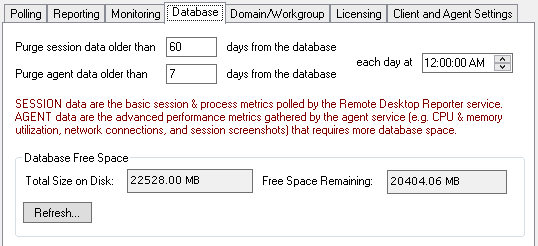
We use this same licensing model at RDPSoft for our Remote Desktop Commander Suite. We put you in charge of the Citrix and RDS data retention, as you can see below from one of our configuration dialogs. And just like in the Dorian days, our licensing model is based on the total number of RDS servers and workstations/virtual desktops you’re collecting data from, not the number of concurrent users connecting to sessions/remote apps, nor the retention days or the volume of data collected. There’s a word for this licensing model: Fair.

rds licensing retention
We put you in complete control of your RDS and Citrix data retention.

However, more and more Citrix and RDS monitoring vendors tie their licensing models to data retention. This includes the Citrix Director plus Edgesight monitoring platform. If you want, in effect, unlimited data retention, you get to pay through the nose. We’ve seen licensing schemes whereby pricing is tiered based on retention, such as one day, one month, or one year. Guess what – the one month and one year data retention options are considerably more costly.

To those vendors adopting those models, we at RDPSoft say: STOP HOLDING YOUR CUSTOMERS’ DATA HOSTAGE.

RDS Licensing Gotcha 2: When They Charge You For Concurrent Users, But Also Count The Built-In Services and Console Sessions Towards the Total

Seriously? You’re so greedy that you’re going to run up the concurrent user count by adding the built-in services and console sessions on every Windows system? Yes, there are vendors in the marketplace that do this. If you’re evaluating other Citrix / RDS monitoring tools, you MUST read their licensing fine print. In this market, more than many others, the licensing scams models are apples and oranges.

Unfair Licensing Schemes Are the Product Of Desperation, Not Innovation

I’ve been around the software industry long enough to tell you how these convoluted and unfair licensing models come into being. It’s no different in the RDS/Citrix tools market.

Picture a bunch of sales weasels professionals gathered around a conference table. They’re sweating bullets because they have major quotas to meet for the year. More than likely there are now ambitious revenue targets set by management in place. “Eureka,” one of them exclaims, “let’s change our licensing model / rules to create more billable units/devices/interfaces/users per customer. That’s the ticket!”

Rather than innovating and raising prices to match an expanded feature set, they simply change the rules of the game midstream. If the subsequent cost increases are mild enough for most customers, those customers don’t complain too much. The old anecdote about boiling a frog slowly comes to mind.

At RDPSoft, Our Licensing Model For RDS and Citrix Monitoring Is Fair, and Maximizes Value

We’re probably old fashioned, but at RDPSoft, we believe in the golden rule. When we buy software or services, we ourselves want to be treated fairly, and we want to support vendors that provide a lot of value for our money. We treat our customers no differently. To summarize, here’s how we do that:

  • Our licensing is based on the number of servers, workstations, or virtual desktops you want to monitor, not the number of named users or concurrent users.
  • We don’t charge you / upsell you based on how much monitoring and reporting data you want to store over time.
  • We don’t pad our margins by forcing you to pay for extra licenses to monitor the built-in console or services sessions.
  • We offer an extremely affordable, pay as you go monthly subscription option for only $9 per RDS/Citrix server monitored, and $1 per Workstation/VDI monitored.
  • We offer free support and a money-back guarantee during the first 30 days after purchase / subscription start. If our software does not perform in your environment for any reason, we will refund your purchase price. Your satisfaction is our number one concern.

Are you ready to save money by dumping your existing RDS/Citrix monitoring vendor? Would you like to start monitoring your RDS farm without breaking the bank on licensing costs? View all the features of our Remote Desktop Commander Suite here, and start your monthly subscription for only $9 per server per month.

Filed Under: RDS Licensing Tagged With: rds licensing

Shadowing RDP Users: A Twisted History

March 21, 2016 By Andy Milford Leave a Comment

Alright folks, it’s time for a post on the fun, twisted history of shadowing RDP users in Microsoft Remote Desktop Services. Not a month goes by that I don’t field a call from an administrator confused about the shadowing changes across various Windows Server implementations. And, I’ll cover some of the basics in Remote Desktop Commander that make these RDP shadowing variations as seamless as possible among the different Microsoft OS versions.

First Rule of Shadow Club: You CANNOT Shadow RDP Users on Windows Server 2012, ONLY Windows Server 2012 R2

This keeps biting RDS admins in the butt. There is ZERO support for shadowing in Windows Server 2012. I’ve written at length about many of the radical changes between RDS on Windows Server 2008 and Windows Server 2012. Microsoft literally roto-rootered the whole RDS stack in Windows Server 2012, tearing out old plumbing and integrating new plumbing related to RemoteFX and RDP enhancements. It took them until the Windows Server 2012 R2 release to put Humpty Dumpty mostly back together again. So unless you REALLY like pain, don’t upgrade to Windows Server 2012 – bypass it and upgrade to Windows Server 2012 R2 or Windows 2016.

Review: Legacy Shadow Techniques for RDP Users on Windows Server 2003 and Windows Server 2008

Yes, I included Windows Server 2003 because I know some of you deviants still have some Windows 2003 systems running in your enterprise, long after extended support and updates have expired. That’s fine you slackers – blame legacy apps and management. 🙂

Back in the good ole days of simpler operating systems, to shadow you would either:

1.) Fire up a copy of TSAdmin (Remote Desktop Services Manager), highlight the user session in question, then right mouse click to shadow them, OR:
2.) Command line it with the shadow command, passing it the user’s session ID and the server their session was located on.

Legacy Shadow User RDP
Ahh, the good ole days of RDP user shadowing…

Both of these approaches required you to run the app or the command from within a Remote Desktop session; you could not issue these commands directly from the console session of a server or workstation.

New Shadow Techniques for RDP Users in Windows Server 2012 R2 (and Windows 8.1 and Windows 10)

Alright, let’s engage in some fantasy now shall we? Let’s say that all of your servers are Windows 2012 R2, and all of your workstations are Windows 8.1 or Windows 10. Ha ha! See how funny I can be? In this case, you can use the new command line arguments built into the Remote Desktop Connection Client (mstsc.exe) to get the party started.

NOTE 1: Unlike Windows Server 2008, Windows Server 2003, and Windows 7, you DO NOT already have to be running in a remote desktop session to start shadowing another user session. You can be logged into the console session of your own desktop, laptop, etc and jump right into shadowing a remote user’s session, IF:

1.) Your Windows system is running Windows 8.1, Windows 10, Windows Server 2012 or later.
2.) Their Windows system is running Windows 8.1, Windows 10, Windows Server 2012 or later.

If either one of the systems is at a lower OS level, this new approach won’t work.

NOTE 2: In Windows Server 2012 R2, by default you need to be a local administrator on the machine hosting the sessions you wish to shadow. This is a major shift from Windows Server 2008 and earlier operating systems. There is a way around this however with a gnarly command you can run inside Powershell.

Again, provided you live in this magical world of fairy tales, unicorns, and homogeneous operating systems, you simply launch mstsc.exe with the appropriate combination of command line switches, such as:

1.) Switch /v, which is the remote computer with the session you want to shadow (e.g. /v:MY2012SERVER)
2.) Switch /shadow, which accepts the session id of the user session that will be shadowed (e.g. /shadow:1)
3.) Switches /control and /noConsentPrompt, which determine whether you can control or only view the session, and whether or not the user is notified that you are shadowing their activity, respectively.

Putting it together: mstsc /v:TARGETSERVER /shadow:1 /noConsentPrompt lets you monitor (but not control) session 1 on TARGETSERVER without notifying the user.

The RDP Shadow Reality: You Run a Heterogeneous Network Full of Systems That Are At Different OS Levels.

I gave a talk on RDP 8 at TechMentor once, and asked for a show of hands to find out who had deployed Windows Server 2012 in their environment. The vast majority of attendees were still running Windows Server 2008, and those who had started deploying Windows Server 2012 still had a lot of Server 2008 systems in place. It was clear that there would be two different approaches to shadowing RDP users for quite a while.

Given this challenge, we built a bit of magic quite some time ago into Remote Desktop Commander when it comes to shadowing users. We automatically detect whether or not you want to shadow a user on the local system or a remote system, and we also look at the OS level of both the local machine and the remote machine. If both systems are running Windows 8.1, 2012 R2, Windows 10 or later, we shell out immediately to MSTSC with the new options. If there is an OS level mismatch, we’ll first establish a client RDP session on the remote system, and then auto launch a helper utility on the remote system that will invoke the appropriate shadowing technique to start shadowing the desired session.

Intelligent RDP User Shadowing
Remote Desktop Commander makes this much easier…

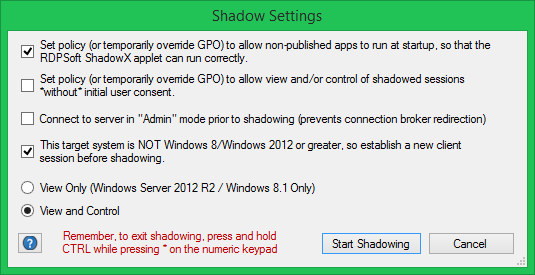
Shadow User RDP Settings

In addition, as you can see in the above screenshot, we give you even more options before starting the RDP user shadow attempt. For instance, you can temporarily override the GPO that controls whether or not users are notified that their session will be shadowed. You can also start your client session in Admin mode, so that the connection broker doesn’t block you from connecting to the desired server in the collection.

The Best Part Of This Twisted History?

These shadowing features come in versions of Remote Desktop Commander. So, luckily, this history doesn’t have too messy an ending.

Find out more about later developments in user session shadowing with Remote Desktop Commander or find out what fits your needs best – you can request a web demo from our team. 

Updated: November 2020.

Filed Under: Shadow User Tagged With: rdp shadow, shadow mstsc, shadow user rdp, shadow windows 2012

Avoiding UDP Transport Gotchas With RDP 8

February 16, 2016 By Andy Milford Leave a Comment

I’ve been writing and speaking a lot lately about the improvements found in version 8 of the Remote Desktop Protocol, which is used in Windows 8 and Windows Server 2012. Version 10 of RDP was just introduced in Windows 10, and it soon will be implemented in Windows Server 2016, adding some new enhancements over Version 8 which we’ll talk about soon. But back to the topic at hand…

UDP Transport in RDP 8 Boosts Throughput And Enhances User Experience

RDP version 8 is the first generation of the Remote Desktop Protocol that uses UDP alongside TCP for data transmission. Provided the RDP client supports RDP 8 (e.g. Windows 7 with RDP 8 Update, Windows 8, or Windows 10), the Windows 2012 RDSH server can transmit data using both UDP and TCP. This is a big deal, because UDP doesn’t suffer from TCP’s enforcement of its congestion-avoidance algorithm, so RDP 8 can push more data across the wire in a selected chunk of time via UDP (e.g. 2x to 8x more compared to TCP transport only), even over high latency links. Couple that with some nifty forward error correction techniques, and RDP 8 is able to boldly go into sketchy network conditions that previous versions would run screaming from.

But Watch Out For the Following Gotchas That Can Block UDP in RDP 8

Believe it or not, there are several common “gotchas” that can conspire against you to prevent UDP transport use with an RDP 8 or later Remote Desktop Connection. Let’s look at them in order:

Using a Windows Server 2008 Remote Desktop Gateway With Windows Server 2012 Remote Desktop Session Hosts

The Remote Desktop Gateway Role Service in Windows Server 2008 does not support UDP transport, so all connections via this legacy gateway will be forced to use TCP only. Not good. Make sure you upgrade your Windows 2008 server running the Remote Desktop Gateway Role Service to Windows Server 2012.

Forgetting to Explicitly Add an Endpoint For UDP in Windows Azure

This one is BIG if you are hosting your Remote Desktop Session Hosts in Windows Azure (or any other cloud service provider for that matter). By default, when you create a new Windows Server 2012 instance (with or without the RDSH role implemented), only the TCP endpoint for RDP will be created. See below:

RDP UDP Endpoint Missing

You’ll need to go back behind any newly provisioned RDSH servers in Azure and remember to explicitly define a UDP endpoint for RDP like so:

RDP UDP Endpoint Defined

Accidentally Disabling UDP Transport Via Server Side Group Policy Objects

One other potential problem is incorrectly setting the “RDP Transport Protocols” Group Policy setting, located under Computer Configuration, Administrative Templates, Windows Components, Remote Desktop Services, Remote Desktop Session Host, Connections. By default, both UDP and TCP will be used if the client supports it, but administrators can explicitly disable the use of UDP transport in this area.

So, there you have it. UDP transport in RDP 8 opens up so many possibilities in terms of user experience an overall Remote Desktop performance. However, you have to double check and make sure that it’s not being restricted right out of the gate.

Want to find out more about what transport protocols your clients use, bandwidth consumption, and connection quality? Click here to learn more about the Remote Desktop Commander, and start a $9 per server per month subscription to profile all of the above, plus much more.

Filed Under: Remote Desktop Protocol Tagged With: RDP, RDP Connection, Remote Desktop Protocol, UDP

  • « Previous Page
  • 1
  • …
  • 10
  • 11
  • 12
  • 13
  • 14
  • …
  • 19
  • Next Page »
  • Email
  • LinkedIn
  • Twitter
  • YouTube

Not Sure Where To Start?

In just a few moments, you can find the right fit of solutions and even services for your needs.

> Get Going Now.

Help Documents

Remote Desktop Commander
Help and Users Guide
Release Notes (ver 8.x)

Sign Up for Remote Desktop Tips and RDPSoft Updates

Blog Topic Categories

  • Azure RemoteApp
  • Azure Virtual Desktop
  • citrix edgesight
  • Citrix Edgesight Replacement
  • Citrix Shadowing
  • Cloud RDP Monitoring
  • DEX
  • Performance
  • RDP Disconnects
  • RDP Latency
  • RDP Login Time
  • RDP Login Tracking
  • RDP Logon Failure Tracking
  • RDP Logs
  • RDP Loss Rate
  • RDP Security
  • RDP Transmission Rate
  • RDS Infrastructure
  • RDS License Metering
  • RDS Licensing
  • Remote Desktop Bandwidth
  • Remote Desktop CPU
  • Remote Desktop Management
  • Remote Desktop Memory
  • Remote Desktop Memory Usage
  • Remote Desktop Monitoring
  • Remote Desktop Performance
  • Remote Desktop Protocol
  • Remote Desktop Reporting
  • Remote Desktop Security
  • Remote Desktop Services
  • Remote Desktop Services Free Tools
  • Remote Desktop Services Hotfix
  • Sensitive Data
  • Server 2012 TSAdmin Replacement
  • Shadow User
  • Software Releases
  • SPLA Reporting
  • Synthetic RDP
  • Sysmon
  • Telecommuting/Teleworking
  • Terminal Server Logging
  • Terminal Server Monitoring
  • Uncategorized
  • User Activity Monitoring
  • User Productivity
  • User Profiles
  • Windows 2008 Terminal Server
  • Windows Virtual Desktop
  • WVD Login Time
  • XenApp Monitoring
  • XenApp Reporting

Recent Posts

  • DEX Monitoring for AVD
  • Remote Desktop User Activity Monitoring
  • Remote Desktop Commander Suite v8 Now Available!
  • Remote Desktop Commander Suite v8 Beta Details, Plus a New Solution to Limit Local Admin Rights in EUC
  • Fix My Session v1 Now Available!

From the RDPSoft Blog

  • DEX Monitoring for AVD
  • Remote Desktop User Activity Monitoring
  • Remote Desktop Commander Suite v8 Now Available!
  • Remote Desktop Commander Suite v8 Beta Details, Plus a New Solution to Limit Local Admin Rights in EUC
  • Fix My Session v1 Now Available!
  • Email
  • LinkedIn
  • Twitter
  • YouTube

We Do “Single Pane of Glass” Monitoring and Management for RDS

Top Level Deployment Dashboard

One of the biggest criticisms leveled against Microsoft's Remote Desktop Services as an end user computing (EUC) platform is its complete lack of integrated management and monitoring tools. … Learn more about our centralized RDS monitoring and management >

Reach Out

For fastest response, reach out via our sales and support contact forms.

Sales
US: 1-855-738-8457 x1
Outside the US: 1-702-749-4325 x1

Support
for Evaluators and Priority Support Customers
US: 1-855-738-8457 x2
Outside the US: 1-702-749-4325 x2

© Copyright 2013–2026 RDPSoft. All Rights Reserved. RDPSoft is the sole authorized publisher and distributor of the following software titles: Remote Desktop Commander, Premium Management Features, Remote Desktop Canary · Sitemap