
Welcome Remote Desktop Canary Beta Testers! We’ve been extremely pleased with the high level of interest expressed in our latest version of Canary and the number of you who signed up to beta test – thank you all very much for your support!
At the bottom of this page, you will find a download link to the Canary beta installer. But first, please read through the notes and recommendations below to make sure your beta participation experience runs smoothly.
If You Are An Existing Remote Desktop Canary Customer…
- Please install the beta version to a DIFFERENT virtual machine running Windows Server 2012 R2, 2016, or 2019. Do not install it over Version 2.0 of Canary – there is not an in place upgrade path for the Version 3.0 beta because of all of the changes. When you install and configure the software, please make sure you are logged in as an administrator on that VM.
- Once you have installed the beta version to a new virtual machine, install your existing license file to the beta version from the License Menu in the Remote Desktop Canary Configuration Tool. Simply use your email and customer service number. If you don’t have your licensing information available, request it by starting a ticket at https://www.rdpsoft.com/support
- On your existing production instance of Remote Desktop Canary, make a copy of the Remote Desktop Canary Workflow file(s) (.RDCW files) that currently govern Canary’s testing. Place those files on to the different VM where you are testing the Remote Desktop Canary v3 Beta. Then, you will need to schedule those file(s) with the new Remote Desktop Canary Service – read further down to see how you do that.
If You Currently Do Not Use Remote Desktop Canary But Wish to Evaluate The Beta For Purchase…
- Install the beta version onto a new VM or management VM in your environment running Windows Server 2012 R2, 2016, or 2019. Please keep in mind that there will always a user session in use, managed by our service, to perform RDP testing. As a result, Windows 10 is not a candidate for use as it only supports one user session logged in at a time, unlike Windows Server, which, at a minimum, supports 2 user sessions.
- When you install and configure the software, please make sure you are logged in as an administrator on that VM.
- Install the temporary license file we emailed you which you can use to test the beta. This is done from the License Menu in the Remote Desktop Canary Configuration Tool.
- To familiarize yourself with how to build a Remote Desktop Canary testing workflow, how to perform different types of tests, how to setup SMTP mail relay to send alerts, etc, please watch these videos immediately below. After watching these videos, continue reading below to learn how to schedule the workflow files you build with the new Remote Desktop Canary Service in v3.


Setting Up The New Remote Desktop Canary Service
In previous versions of Remote Desktop Canary, you simply started a “continuous test” and left it going in a locked user session. This led to issues when the VM/computer running Remote Desktop Canary had to be restarted, for updates and maintenance. This was mitigated by the use of the Remote Desktop Canary Kickstarter applet.
In Version 3.0 of Remote Desktop Canary, the Remote Desktop Canary Service now is responsible for making sure that there is a Remote Desktop Canary Testing User session active on the VM/computer when testing needs to be taking place. Even if you restart the VM, the Remote Desktop Canary Service will automatically login the Remote Desktop Canary Testing User after the VM reboots so testing can start up OK.
In order to do this, you have to provide the service with a valid user account in your domain that can create an RDP session on the server VM where Canary is installed. This account can be a Domain User; it doesn’t need any special permissions other than having the right to perform an RDP login to the local server, and the Remote Desktop Canary Configuration Tool will make sure its added to the local Remote Desktop Users group on the server VM.
Note 1: If you are installing Canary on an isolated VM not participating in a domain, you can specify a local user account (e.g. HOSTNAME\UserName) instead.
Note 2: Please DO NOT USE the same account that you log in to administer Remote Desktop Canary, e.g. the admin account you sign in with to create Remote Desktop Canary workflows and do one-time tests. If you choose the same account, you will be logged off when the Remote Desktop Canary service starts running its scheduled tests. D’oh!
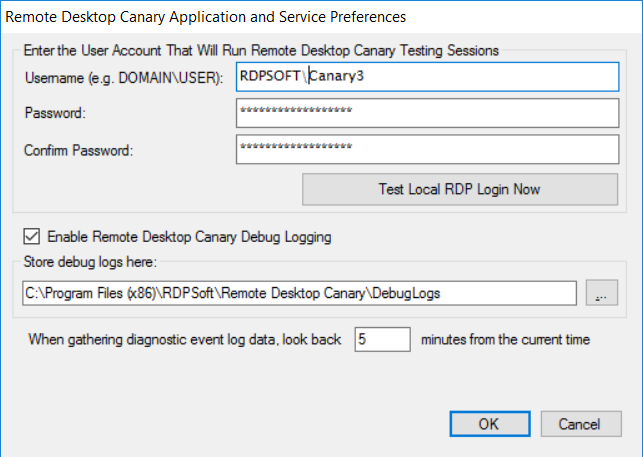
When you launch the Remote Desktop Canary Configuration Tool for the first time, it will notice that you have not specified a Remote Desktop Canary Testing User Account, and it will prompt you to enter in the credentials for that account so the service has what it needs. Immediately after you enter in the testing user credentials, click on the Test Local RDP Login Now button. If within about 10 seconds you see a fully logged in RDP session in a Remote Desktop Canary window, you’re all set. Close/disconnect this session by closing the window.
If for any reason you do not get a fully logged in RDP session in about 10 seconds, you may have entered in your credentials incorrectly, or the account may not have permissions to perform an RDP login at this computer. Please fix that issue and then test the local RDP login again.
Scheduling Workflow Files With the Remote Desktop Canary Service
Once you have the Remote Desktop Canary Testing User credentials supplied, and you’ve verified that the credentials are valid and that they can perform a local RDP login, your next step is to register and schedule your Remote Desktop Canary Workflow Files (.RDCW files) with the service. This is done from the Run and Schedule Tests -> Schedule Tests menu item.

For instance, if you have all of your testing workflows defined in a single workflow file, and you want round-the-clock, 24/7 testing, click the top right Schedule a New Workflow button, select your saved workflow file, and select Continuous operation, then click OK.
OR, if you reboot your servers from 12:00AM to 12:30AM, click the top right Schedule A New Workflow button, chose your workflow file, and schedule it to run from 00:32 to 23:58. This will prevent Remote Desktop Canary from generating unnecessary alerts during maintenance intervals.
OR, if you have created one workflow file that tests RDP connectivity on all of your hosts, which you want to run in the morning after your public cloud servers are brought online, and ANOTHER workflow file that then tests the RDS connection broker and its load balancing to various session hosts, you could schedule two workflows like so:
06:00 – 07:00 TestHostsOnline.rdcw
07:02 – 23:00 NormalCBTesting.rdcw
Finally, if you need to orchestrate even more advanced scheduling around maintenance windows, remember that you can always script the starting and stopping of the Remote Desktop Canary Service. When the Remote Desktop Canary Service, no testing takes place. So, if you only do weekly maintenance/updates, but want 24/7 monitoring the rest of the days, write a script that stops the Remote Desktop Canary Service during the weekly maintenance window and restarts it once maintenance is finished.
Once you schedule workflow files with the service, the Remote Desktop Canary Service will start the testing within a few minutes, if the current system time matches one of the scheduled ranges. You don’t need to stop/restart the service if you change the schedule. Similarly, if you load a workflow file, make minor changes to it, and save it, the Canary Service will detect that the file has been changed on disk and reload it automatically.
If you are curious as to whether or not specific workflow files are being initialized and run, you can open up the Application Event Log in the Windows Event Viewer. The Remote Desktop Canary Service logs all operations, such as loading and unloading workflow files for testing. Remember, it may take a few minutes for different workflows to load, as the Canary Service shuts down testing on one before reinitializing another.
Note: If you want to TEST significant changes you are making to a workflow file, we recommend stopping the Remote Desktop Canary service temporarily so you don’t run a manual test at the same time the Canary Service is running scheduled testing.
Collecting Diagnostic Event Log Data When There is a Connection Problem or Login Delay
If you are doing *internal* testing (meaning you have configured Remote Desktop Canary to run tests while having direct line of sight to connection brokers and session hosts, WITHOUT using Remote Desktop Gateway), you can tick the new Gather Diagnostic Event Logs check box. If you check this option when defining a workflow – or check it when you import in a previous Remote Desktop Canary v2 workflow – Remote Desktop Canary will attempt to gather up relevant warning and error events from the event logs on any target session host and/or broker that experiences a problem, and include those events in alert emails to aid in troubleshooting.
In order for diagnostic event log gathering to work properly, you need to ensure the following:
- There cannot be hardware firewalls between the VM running Remote Desktop Canary and the connection broker/session host VMs that would block normal Windows networking ports.
- If you have the Windows Firewall enabled on your session hosts or brokers, please make sure the Remote Event Log Management exception is enabled.
- Finally, whatever domain account you assign to act as the Remote Desktop Canary Testing User above MUST be placed in the Event Log Readers local group on each connection broker and/or session host. For larger environments, it’s best to set this up via Group Policy and/or with a PowerShell script.
Remote Desktop Canary v3 Beta Download Link
You can download the Version 3.0 Beta of Remote Desktop Canary here.
As this is a beta release, please try and hurt it and report any bugs and/or feature suggestions to us using our support form here. Certain Remote Desktop Gateway or Connection Broker configurations may prevent Canary from connecting into your environment, so if that happens, please contact us using that support form above. We will send you instructions on how to create a debug log you can send us to troubleshoot the issue.
