
Greetings, friends and customers. I hope you all have recovered from the Microsoft September Security Updates that broke RDS, as well as the new onslaught of AI detected/exploited security vulnerabilities like PHP2Shell. No rest for weary sys admins and security admins it would seem.
That all said, I do have some good news for you! We now have a stable beta build of Remote Desktop Canary v5 ready for you to test and deploy in your environments. This is a major release with many new features we’re sure you will enjoy. I’ve broken them down into categories below – please review them, and when you’re ready, fill out the form below to request a link to download our beta build.
New Azure Virtual Desktop Monitoring Features
As more and more customers consider repositioning their End User Computing environments into Azure Virtual Desktop, or Azure Virtual Desktop Hybrid, we continue to add AVD specific features to our tools. Remote Desktop Canary is no exception. In the case of AVD, Microsoft directly controls the brokering and gateway control plane and, if that goes down, you are at Microsoft’s mercy to restore service. However, you still need to deploy synthetic monitoring focused around the AVD session hosts in your AVD deployments. Why? Many scenarios can arise that you need to be alerted on, such as:
- Azure VMs that never powered on according to scaling rules, due to things like a regional outage or capacity problem,
- Recent Windows updates or application updates that are causing black screens,
- Resource contention issues on the AVD hosts that are causing slow logins or failed logins,
- plus much more…
Fortunately, our new features in V5 now let you do that AVD session host monitoring in a superbly easy to configure way.
Easy App Registration Setup for Seamless AVD Host Pool Testing
Previously, setting up a testing workflow for AVD hosts in Canary was a static, manual process. You’d need to either choose your AVD session hosts directly, from an Active Directory list of hosts, or manually build an App Registration/SPN name in your Azure Portal, review the hosts in host pools, and manually select them. Later, if your hosts changed in your host pools, you’d need to do this again.
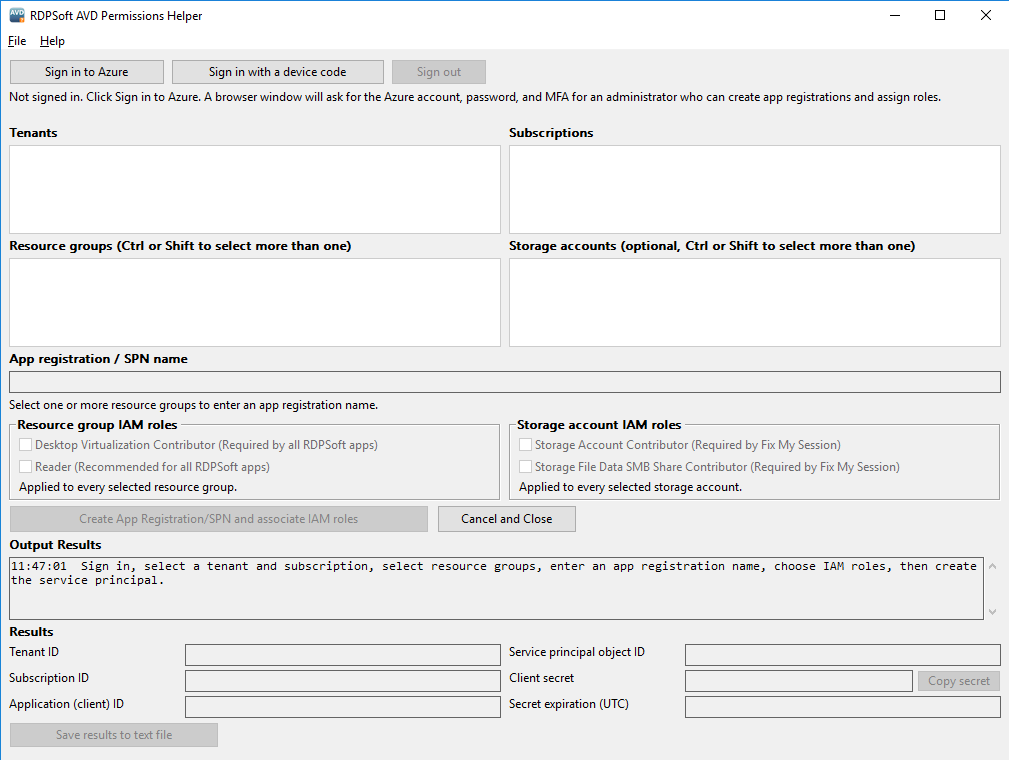
Version 5 of Remote Desktop Canary ships with a new RDPSoft AVD Permissions Helper tool. Rather than having to set up an App Registration with SPN manually in the Azure Portal, you may now simply authenticate with an Azure account that is an admin in your tenant, select the relevant subscriptions and resource groups, type in a new App Registration name and check off the IAM roles needed by Remote Desktop Canary (or our other products). In less than a minute, the RDPSoft AVD Permissions Helper tool will set everything up for you, and you can save the App Registration details for later use in Canary or any of our other apps.
Test Scalable Host Pools Seamlessly With Dynamic AVD Host Pool Testing Plus Power State Screening
Scaling scripts and scaling plans have become increasing popular in Azure Virtual Desktop as a way of keeping compute costs in check. In addition, more and more orgs using AVD couple scaling plans WITH dynamic, non-persistent or semi-persistent hosts that are routinely rebuilt and reprovisioned using DevOps techniques.
In Remote Desktop Canary v5, we have added two new features to take these scenarios into account when testing. The first feature is Dynamic AVD Host Pool Testing. When building an AVD testing workflow in the Remote Desktop Canary Workflow Builder, you can now select entire host pools, instead of individual AVD hosts, like so:
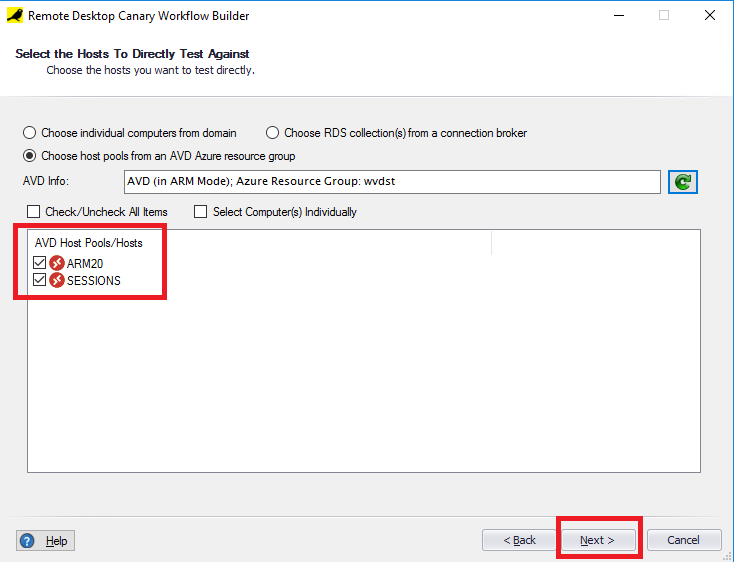
When configured this way, Remote Desktop Canary will contact the AVD broker to get the list of session hosts in the selected host pools each time a testing schedule starts. Now it won’t matter if you are adding/removing hosts out of host pools daily- Remote Desktop Canary v5 will catch these changes automatically, so it can routinely test each independent session host.
Next, if you are using scaling scripts or scaling plans, you can tell Remote Desktop Canary NOT to test session hosts which are not currently reporting a power state of Running, preventing alert notifications that are not relevant.
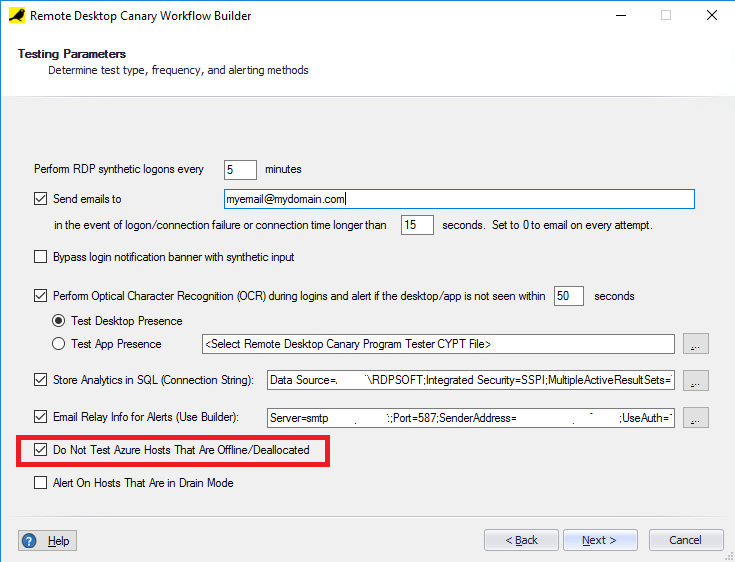
Then, if you want to be even more sophisticated with your testing, you can create two different workflows- one that does not attempt to test offline hosts, and another that does screen for offline hosts; and schedule them within Canary in such a way that you do not get alerts during your early morning scale up, or during the afternoon/evening scale down, but will receive alerts if all of your hosts are not fully online during critical working hours.
New Remote Desktop Services Monitoring Features
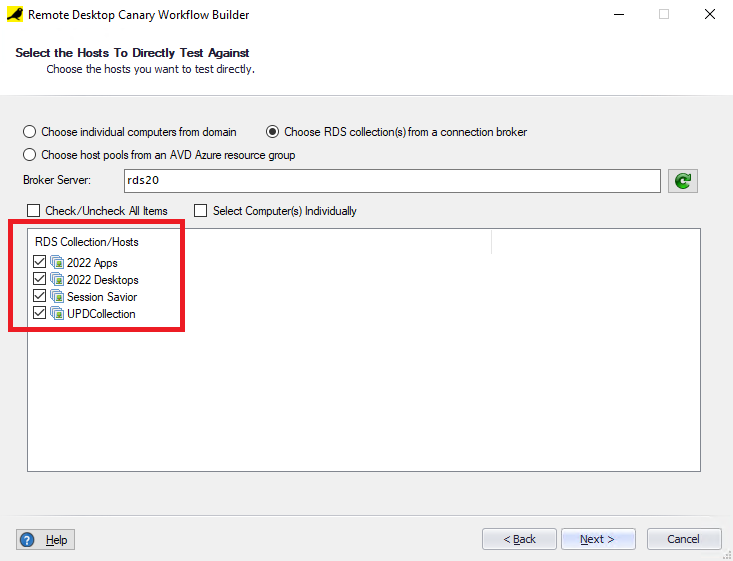
Dynamic RDS Collection Testing
Just like the Dynamic AVD Host Pool testing above, you can now build Dynamic RDS Collection workflows, whereby Remote Desktop Canary will obtain the list of all RDS session hosts in one or more RDS collections, by directly querying the connection broker. As your collections change over time, Remote Desktop Canary will automatically make all necessary adjustments so it can test each session host individually. Of course, traditional broker to session host testing also remains supported in Remote Desktop Canary, so you can also test the broker’s ability to automatically assign a session host to an incoming user.
Other New Remote Desktop Canary Features
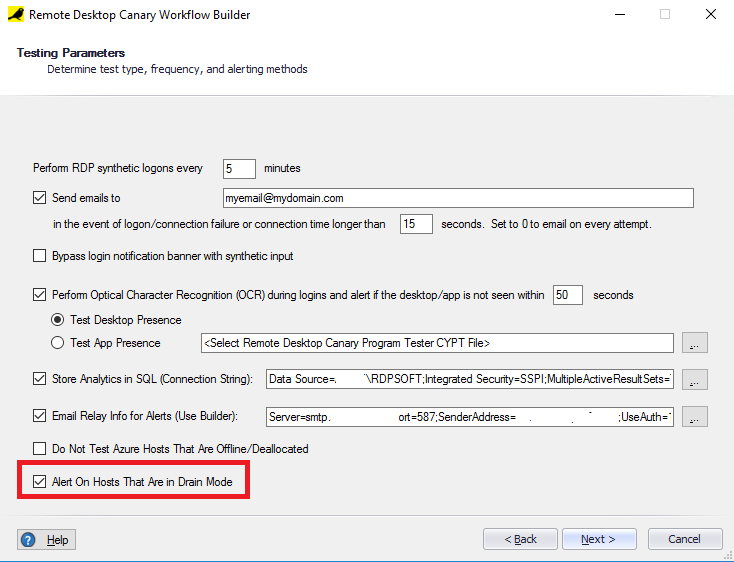
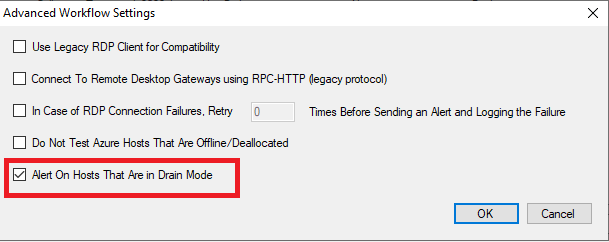
Receive Alerts About Hosts in Drain Mode (in both AVD and RDS)
Previous versions of Remote Desktop Canary could perform admin style logins to individual hosts in RDS collections and AVD host pools (to avoid automatic redirection by the Broker). However, an admin style login will succeed even when a host is in drain mode. Now, you can adjust testing parameters so that Remote Desktop Canary will generate an alert if the host is currently in AVD or RDS drain mode. This allows you to catch hosts that remained in drain mode overnight after updates, or even after a previous issue was successfully resolved.
Live Observation and/or Control of the Remote Desktop Canary Testing Session
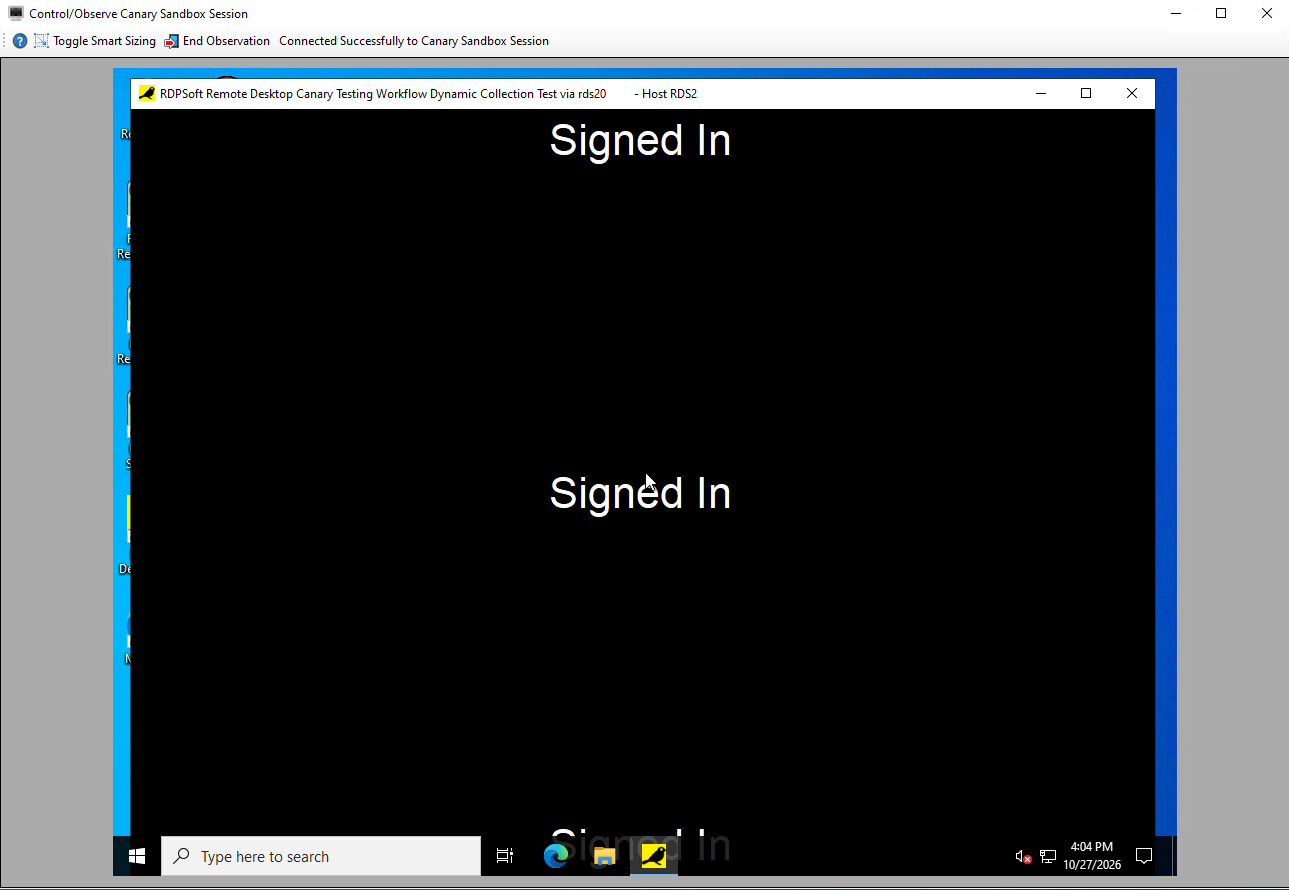
Ever since Remote Desktop Canary v3 was released, Remote Desktop Canary creates a special “sandbox” local RDP session on the Windows Server VM where it is installed. By running its scheduled synthetic AVD and RDS tests in this sandbox session, it is able to observe the outcome of the testing by taking screenshots, perform OCR testing, and handle other tasks without interfering with other admin sessions on the server. We have now added a feature that allows a logged in admin to observe the testing in this special session or, in other cases, take control of the testing session. Consequently, admins can now:
- Review whether or not automated, scheduled testing is actually proceeding in the way that they desire
- Clean up orphaned/testing sessions by closing RDP client testing windows
- Clean up and close system level dialogs or ribbon banners that are interfering with OCR testing
- Change the background colors, fonts, and UI styles of the sandbox testing user’s profile, in order to improve OCR detection and accuracy
New and Improved RDP Testing Client
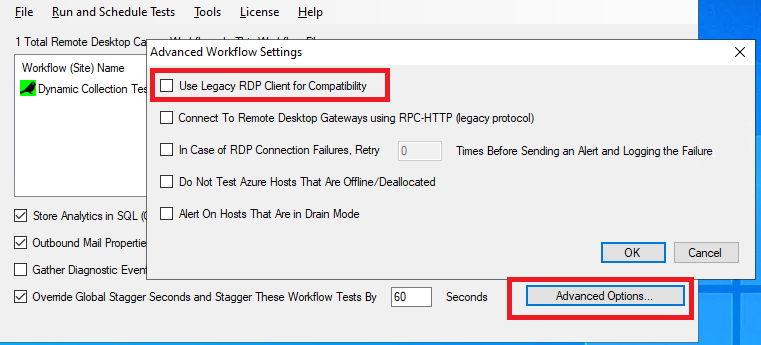
Remote Desktop Canary v5 now utilizes a more up-to-date version of the lightweight, open source RDP client we use to test AVD and RDS environments. This new client supports a greater set of RDS and AVD environment edge cases, such as environments with certain RD gateway settings, display protocol settings, newer certificate settings (e.g. SHA384), etc. To utilize the new client, after upgrading to Version 5, load an existing workflow, and make sure that “Use Legacy RDP Client for Compatiblity” is DISABLED / unchecked. New workflows you create manually or with the Workflow Builder Wizard will default to utilizing the newer RDP client automatically.
Improved OCR Accuracy
We have made improvements to the algorithm responsible for Optical Character Recognition of images generated during Remote Desktop Canary workflow testing sessions. As a result of these improvements, the algorithm now uses less memory during testing, yet has a higher accuracy rate when parsing complex images. Consequently, you should be empowered to create more complex OCR dependent testing workflows, and you should see fewer “NOISY IMAGE” soft failures in Canary OCR alert emails.
Ready To Test the Beta?
Please complete the form directly below, and we’ll respond with a link to obtain the beta build. For existing customers who wish to install over version 4 of Remote Desktop Canary, you can do an in-place upgrade directly on that system. After the upgrade, make sure that the Remote Desktop Canary service is still running and that the sandbox testing session has reinitialized and resumed your test. If you wish to utilize the new RDP client, load your testing workflow, go to Advanced Options, and uncheck “Use Legacy RDP Client for Compatibility.” Then click “OK,” “Save” the workflow, and then go to the File menu and save the Workflow file to disk. Remote Desktop Canary should pick up the changes in your workflow file and restart the testing using the new RDP client.
Optionally, you can install the Remote Desktop Canary v5 on a completely different VM and set up some workflow tests there, whichever you prefer.
Please use our support ticketing form to report any issues/bugs you discover in the beta so we can fix them ahead of the commercial release.

Leave a Reply