
How To Troubleshoot Email Delivery of Alerts and Scheduled Reports in RDPSoft Products
Several RDPSoft products use email to send alerts and forward scheduled reports to key stakeholders. Here are some screenshots showing where email relay settings and configured in various RDPSoft products:
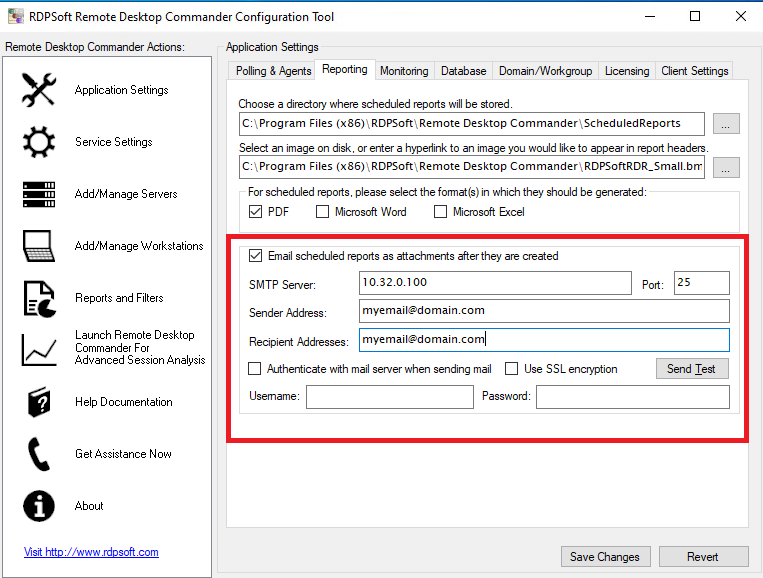
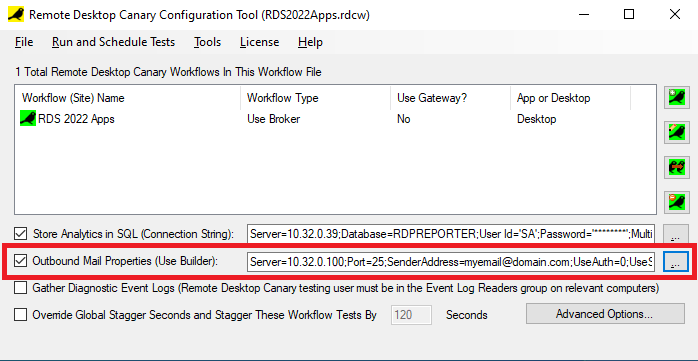
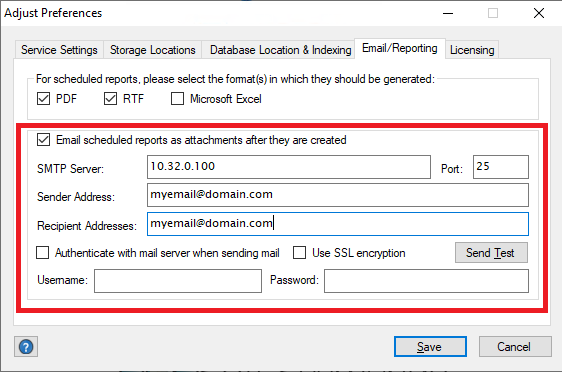
In all applications, there is a Send Test button you can press to verify that our software is able to send email correctly. You may need to change various settings, like port and other authentication settings for SMTP email relay to work properly.
While Microsoft 365 Apps and Exchange Online is a popular platform for sending organizational mail, Microsoft’s increasing security restrictions can make it tricky to relay through. If you want to relay alerts and reports from our software directly through Exchange Online, please review this article in depth to allow SMTP AUTH relay for our application.
However, given that Microsoft will soon be removing SMTP AUTH altogether from Exchange Online services in September 2025, a better option is either to set up a lightweight SMTP server to relay through on a Windows Server VM in your organization, OR to use a third party SMTP relay service that offers a free tier, like SendGrid or SMTP2GO.
Option 1 – Set Up A Windows VM Based SMTP Server For Relay
As Microsoft annoyingly has also been deprecating and/or removing their IIS based SMTP Service in their Windows Server operating systems, we recommend using a free open source SMTP Server like E-MailRelay. Please review this site for documentation and how to download and install the Windows version.
Option 2 – Sign Up For a Free Tier at a Cloud Based Email Provider Like SendGrid or SMTP2GO To Send Emails
Both SendGrid and SMTP2Go offer free tiers to relay email. As of this writing, SMTP2Go offers a plan that supports up to 1000 emails per month, and up to 200 emails per day. SendGrid offers a plan that supports up to 3000 emails per month, and up to 100 emails per day.
Both of these plans should be more than sufficient for normal email volumes generated by our applications.
Common Reasons For Email Delivery Failures, and How To Troubleshoot Them
1.) You may need to add an exception to your internal SPAM filtering/mail quarantine/mail rules so that our software’s alert and reporting emails make it to your inbox.
2.) Some email servers impose a default mail message size, which you may need to increase, especially if you are relaying scheduled reports from the Remote Desktop Commander Suite and Sysmundo applications.
If the Remote Desktop Commander Suite cannot contact the email server to send a scheduled report, it will post a warning in the Application Event Log from the RDPSoft Remote Desktop Reporter Service, around the time that the scheduled report was created. Look for these warning messages for further details.
If no warning messages are found, contact your own mail administrator, and have them look through the SMTP logs around the time our software was attempting to send a scheduled report or attempting to email an alert. Also check the mail servers quarantine area, and release the message and create an exception if needed.
In most scenarios, even if a scheduled report cannot be emailed successfully, you can still pull it up from the ScheduledReports folder in either the Remote Desktop Commander Suite or Sysmundo. The default directories for these reports are:
C:\Program Files (x86)\RDPSoft\Remote Desktop Commander\ScheduledReports (Remote Desktop Commander Suite)
and
C:\Program Files\RDPSoft\Sysmundo\Reports (Sysmundo)
